Guide
How to Convert an SVG File to PNG Without Losing Quality
In SVGEditor, a 24×24 SVG produces a 48×48 PNG. This guide explains 2× sizing, alpha, SVG vs PNG vs Data URI, email and CMS handoffs, and when to keep SVG. The examples reflect SVGEditor’s current 2× export behavior.
Published August 7, 2026 · Updated August 13, 2026

Paste an SVG—no desktop app or account required. The tool page opens with the PNG tab ready.
Open SVG → PNG converter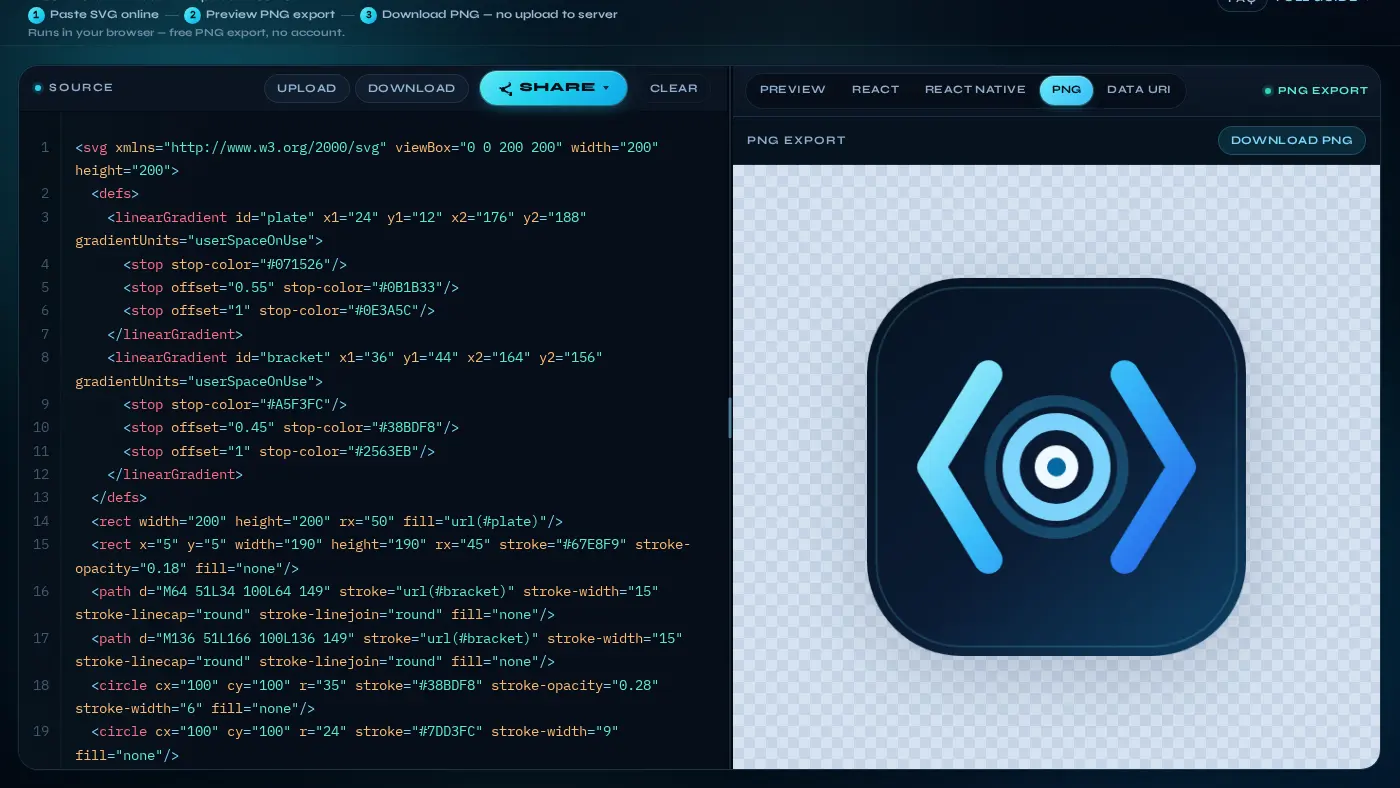
Why convert SVG to PNG?
SVG scales without bitmap pixelation and is usually the better choice for product UI. Many destinations still require a bitmap: email clients that strip or block SVG, Word and PowerPoint documents, CMS media libraries that only accept PNG/JPEG, and social uploaders that reject vector files. Rasterizing the SVG gives you a portable asset without leaving the browser.
PNG is usually better than JPEG for icons and logos because it preserves an alpha channel. Soft edges and hollow shapes can therefore sit cleanly on light or dark backgrounds. That is why SVG-to-PNG conversion remains useful even in vector-first workflows.
Conversion does not mean that PNG should replace SVG in an application. Use PNG for handoffs; developers can keep the SVG or React component in the UI when color and scale still matter. The preview, sharing, React, and PNG features use the same Source panel in the editor.
Worked example: 24×24 icon → 48×48 PNG
A common request from design or marketing is, “Send the icon as a PNG for the deck or newsletter.” The source is a 24×24 icon. SVGEditor’s exporter renders it at 2×, so the download is 48×48 and looks sharper on 2× displays when shown at 24 CSS pixels.
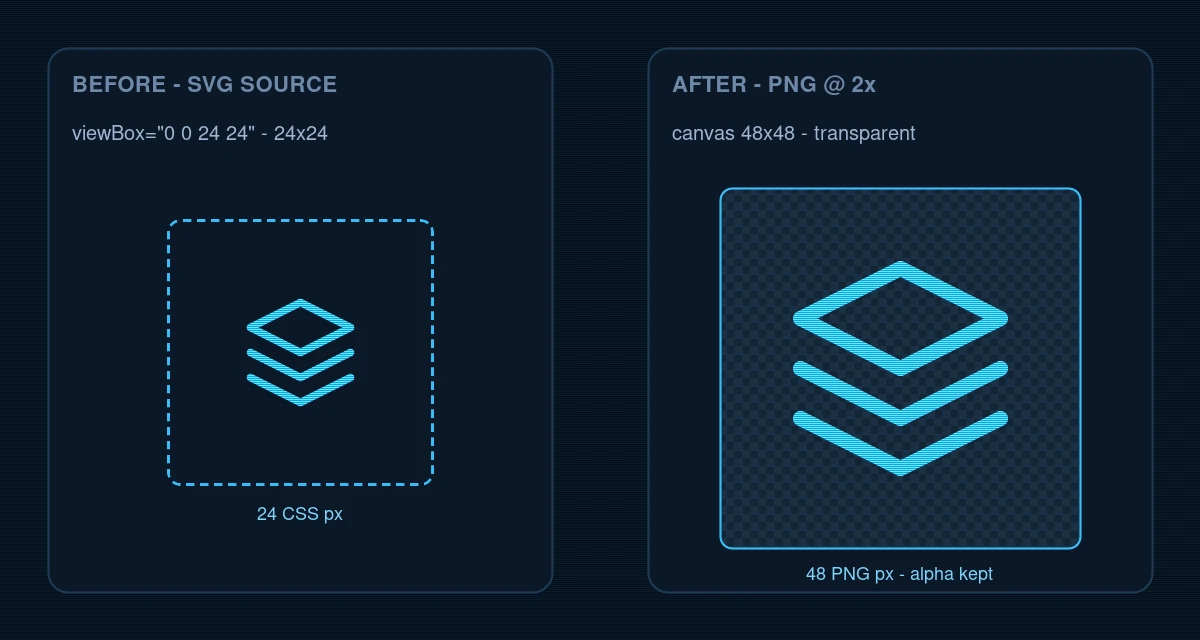
Source SVG (dimensions come from width and height):
<svg xmlns="http://www.w3.org/2000/svg" viewBox="0 0 24 24" width="24" height="24" fill="none">
  <path
    d="M12 2L2 7l10 5 10-5-10-5zM2 17l10 5 10-5M2 12l10 5 10-5"
    stroke="#38BDF8"
    stroke-width="1.5"
    stroke-linejoin="round"
  />
</svg>
Paste the SVG into SVGEditor, leave PNG selected, then Download PNG. The tool uses a deliberately simple sizing rule:
// How SVGEditor sizes the canvas (simplified from the real exporter)
const scale = 2;
pngWidth  = svgWidth  * scale;  // 24 → 48
pngHeight = svgHeight * scale;  // 24 → 48
// drawImage stretches the vector into that pixel grid; alpha is kept
Display the file at its original CSS size so the extra pixels improve sharpness:
<!-- 48×48 file, shown at 24 CSS px → sharp on 2× screens -->
<img
  src="/icons/layers.png"
  width="24"
  height="24"
  alt=""
  decoding="async"
/>

/* or */
.icon-layers {
  width: 24px;
  height: 24px;
  background: url("/icons/layers.png") center / contain no-repeat;
}
Need a larger file for print or a hero image? Increase the SVG’s width and
height first (for example, 200×200 → 400×400 PNG), then
download again. For print, choose values that provide enough pixels at the intended physical
size and PPI. The 2× factor still applies.
How browser SVG → PNG rasterization works
Understanding the pipeline explains most reports of broken exports. Browser-based converters (including SVGEditor) follow the canvas path:
- Parse and serialize the SVG, and ensure that it has the correct
xmlns. -
Parse the numeric prefix of
widthandheight, falling back to the correspondingviewBoxdimension and then 512 if either value is missing or zero. - Load the SVG into an
Imagevia a blob URL (image/svg+xml). - Draw onto a canvas at the target pixel size (SVGEditor uses a fixed 2× scale).
- Call
canvas.toDataURL("image/png")(ortoBlob) to create the download.
// Sketch — SVGEditor already does this in the PNG tab
const scale = 2;
canvas.width = Math.round(width * scale);
canvas.height = Math.round(height * scale);
ctx.clearRect(0, 0, canvas.width, canvas.height);
ctx.drawImage(img, 0, 0, canvas.width, canvas.height);
link.href = canvas.toDataURL("image/png");
link.download = "svgeditor-export.png";
Why a fixed 2× instead of window.devicePixelRatio? Export must be
deterministic: the same SVG should yield the same PNG on a laptop and a phone.
Increase the SVG dimensions when you need more pixels. The design or marketing team gets one
reproducible file, while developers can keep the vector in the UI.
Units and fallback dimensions: the exporter uses parseFloat to read
the numeric prefix of each dimension. Unitless and px values are predictable.
Percentages and other CSS units are not resolved against CSS layout, so
width="100%" is parsed as 100, not as 100% of a container. A missing or
zero dimension falls back to the corresponding viewBox dimension, then to 512.
External assets, unavailable fonts, missing namespaces, and unsupported filters can cause
missing content or export errors. Cross-origin content can also taint the canvas and make
toDataURL fail. Fix or inline the affected assets, then export again.
How to convert SVG to PNG online
Use SVGEditor’s SVG to PNG converter when you want a transparent download without installing Inkscape, Illustrator, or a CLI. You do not need an account, and no file is uploaded.
-
Paste or upload an SVG with width and height set
Open the converter. Paste markup into Source or use Upload for a
.svgfile. KeepviewBox, and setwidthandheightfor a predictable export size. -
Preview the PNG raster
The PNG tab is already selected on the tool page. Confirm that the strokes, fills, and edges look correct. The checkerboard appears only in the preview.
-
Download the 2× PNG
Click Download PNG. SVGEditor rasterizes at twice the parsed width and height values. Show the asset at its original CSS size for sharp output on 2× displays.
-
Choose PNG or SVG for the destination
Use the PNG in email, presentations, or bitmap-only upload fields. Keep SVG when the icon needs to scale or follow theme colors such as
currentColor.
Need an inline CSS background instead of a file? Switch to the Data URI tab in the same workspace to create a URL-encoded or Base64 value.
What SVGEditor’s PNG export does (and does not)
These limits explain when a browser export is enough and when to use a CLI.
- Does: rasterize the current Source SVG as a transparent PNG at twice the parsed width and height values; preserve alpha; show a checkerboard preview before download; and run entirely in the browser.
- Does not: resolve percentages or other CSS units against layout; recolor fills for dark mode; reliably flatten external assets or unavailable web fonts; or provide print-size and DPI controls.
-
Why fixed 2×: the same SVG should yield the same PNG on a laptop and a phone.
Using
window.devicePixelRatiowould make downloads vary by device, which is unsuitable for design handoffs.
Text in an SVG uses the fonts available in the viewer’s browser. If a web font is not loaded, glyphs may fall back or disappear. Convert text to paths in the design tool when the PNG must match brand typography exactly.
2× sizing, alpha, and anti-aliasing
- 2× export: a 24×24 SVG becomes a 48×48 PNG. Display at 24 CSS px for crisp results on 2× displays. Increase the SVG dimensions first if you need more pixels.
- Alpha: empty and translucent areas in the SVG remain transparent in the download. Preview swatches on the live Preview tab do not bake into the PNG.
- Hard-coded fills: a black icon on a transparent PNG works in a light email but disappears on a dark slide. Recolor the SVG before export, or keep the vector for themed UI.
- Hairline strokes: a 1px stroke at small sizes can look soft after rasterization. Slightly thicker strokes or a larger export size appear cleaner in presentations and email.
- Soft-edge fringe: anti-aliased edges on transparent PNGs can pick up a faint halo when composited on unexpected backgrounds. If you see a light fringe in a dark deck, check the fills against both light and dark backgrounds in the live preview, and then re-export.
-
Fallback size: a missing or zero width or height falls back to the corresponding
viewBoxdimension, then to 512. Set width and height, and keep theviewBox, for a predictable export size. - Print and large-format work: print quality depends on the PNG’s pixel dimensions at the intended physical size and PPI. SVGEditor has no print-size or DPI controls, so set the SVG dimensions to produce enough pixels or use Inkscape or a CLI with explicit output settings.
Optional HTML for responsive sharpness (a 1× CSS size with a 2× file from SVGEditor):
<img
  src="/icons/layers.png"
  srcset="/icons/layers.png 2x"
  width="24"
  height="24"
  alt="Layers"
  decoding="async"
/>
SVG vs PNG vs Data URI
The same editor provides three outputs. Choose the format that fits the destination.
| Use case | Prefer SVG or React | Prefer PNG download | Prefer Data URI |
|---|---|---|---|
| Product UI | Icons that recolor and scale | Usually unnecessary | Small inline CSS assets |
| Email and Office | Often blocked or rendered poorly | Usually the safest choice | Sometimes works in HTML email |
| CMS or social media upload | Often rejected | Widely accepted | Not a file upload |
| No extra HTTP request | Inline SVG or component | Needs a file or CDN URL | Paste into CSS or HTML |
| Themes and dark mode | currentColor or props |
Fixed pixels; re-export to recolor | Fixed unless you regenerate |
As a rule of thumb, use SVG or React in the product UI, PNG for handoffs and bitmap-only tools, and a Data URI for a small inline CSS asset.
Browser converter vs Inkscape, ImageMagick, or resvg
Desktop and CLI tools remain important for batch jobs. A browser converter is more efficient when configuring a local tool would take longer than completing a single export.
| Job | SVGEditor (browser) | Inkscape, ImageMagick, or resvg |
|---|---|---|
| One-off icon or logo | Designed for one-off handoffs | Usually unnecessary unless already installed |
| Hundreds of files | Manual per file | Local and scriptable |
| Private or unreleased brand asset | Stays on device (no upload) | Local and scriptable |
| Preview and share link | Built in | Use a separate tool |
| Also need React JSX | Same workspace | Use a separate tool such as SVGR |
Example CLI (for teams that already live in the terminal):
# ImageMagick — size is explicit; no automatic 2×
convert -background none icon.svg -resize 48x48 icon.png

# Inkscape
inkscape icon.svg --export-type=png --export-filename=icon.png -w 48 -h 48
SVGEditor’s fixed 2× scaling is designed for one-off handoffs. CLI flags require an explicit output size, making them better suited to repeatable pipelines.
Sanitize untrusted SVG before you convert
Rasterizing does not make hostile markup safe to preview. If the SVG came from a user upload, content copied from the internet, or a share link, treat it as untrusted before it hits the canvas.
-
Strip
script, event handlers,foreignObject, and hostile SMIL. These are the same surfaces that cause SVG XSS when an SVG is inlined or previewed. - SVGEditor sanitizes pasted and uploaded content before preview and before PNG or React export, preventing export from a payload that still contains active content.
- For a production upload pipeline, also use a server-side or Worker-based sanitizer. See Sanitize SVG for XSS for DOMPurify config, CSP, and the checklist.
Why in-browser conversion matters for brand assets
Unreleased logos and client icons should not be sent to an arbitrary upload service. SVGEditor rasterizes with the browser’s canvas, so the SVG is not posted to a backend for conversion. The same approach applies to previews, hash-based sharing, and React export.
If you use Copy link, treat the URL like the file: the payload lives in the URL fragment and is decoded on the recipient’s device. Do not paste confidential icons into public channels.
Common mistakes
-
No
widthorheight: a missing or zero value falls back to the correspondingviewBoxdimension, then to 512. Set width and height before downloading. -
Dropping
viewBox: scaling and aspect ratio get fragile when you change size for a larger PNG. - Assuming the checkerboard is in the file: the checkerboard appears only in the preview. The download preserves the alpha channel.
- Expecting theme colors in PNG: once rasterized, fills are fixed. Recolor the SVG first, or keep a React component in the UI.
-
Using a tiny icon SVG for a large hero: 2× of 24px is still 48px. Enlarge
width/height(keepviewBox) before export. -
External assets or unavailable fonts: these can cause missing content or
export errors. Cross-origin content can taint the canvas and break
toDataURL. Fix or inline the affected assets, then export again. - Showing a 2× PNG at full pixel size: a 48×48 file displayed at 48 CSS px is pixel-for-pixel on a 1× display but can look soft on a 2× display, which needs 96×96 source pixels at that CSS size. This 48×48 export is intended for display at 24 CSS px on a 2× display.
- Skipping sanitization for untrusted uploads: converting to PNG does not remove XSS vectors from the preview. Sanitize first; see Sanitize untrusted SVG.
- Ignoring print size and PPI: print quality depends on the PNG’s pixel dimensions at its intended physical size. Set the SVG dimensions to provide enough pixels, or use a tool with print-size and DPI controls.
Production checklist before sending the file
-
Dimensions: set
widthandheight, and keep theviewBox, for a predictable export size. For print, choose values that provide enough pixels at the intended physical size and PPI. - Display: show the 2× PNG at the original CSS size (24 CSS px for a 48×48 file).
- Alpha: confirm transparency against the checkerboard; remember that preview swatches do not bake into the download.
-
Color: recolor hard-coded fills for the destination background; PNG cannot
follow a theme through
currentColor. - Strokes and text: thicken hairlines if they look soft; convert text to paths when brand fonts must match exactly.
- Cleanup: remove editor metadata and unused IDs; inline or remove external images before rasterizing.
- Trust: sanitize untrusted SVG before preview/export.
- Format: use PNG for handoffs and bitmap-only tools, SVG or React in the product UI, and a Data URI for a small inline CSS asset.
- Email and Office: host or attach the PNG; many clients mishandle inline SVG (especially older Outlook).
- Favicons: a single 2× icon PNG is a starting point, not a complete set. Export each target size separately.
FAQ
How do I convert an SVG to PNG?
Paste the SVG into
SVGEditor’s SVG to PNG converter, keep the PNG tab
open, check the transparency preview, and click Download PNG. The export is
twice the parsed width and height values. Set width and height, and
keep the viewBox, for a predictable export size. Everything runs in your browser.
Is there a free SVG to PNG converter online?
Yes. SVGEditor’s free SVG-to-PNG tool runs in your browser, requires no account, and does not upload the file to a server. Paste the SVG, keep the PNG tab open, and use the download button at the top of this guide.
Does converting SVG to PNG keep transparency?
Yes. The file preserves the SVG’s alpha channel. The checkerboard appears only in the preview.
What size is the exported PNG?
Rasterization uses twice the parsed width and height values. A 24×24 icon becomes 48×48. Set
width and height, and keep the viewBox, for a predictable
export size. For print, choose values that provide enough pixels at the intended physical size and PPI.
Why is my SVG to PNG export blurry or tiny?
The export dimensions are twice the parsed width and height values. A 16×16 source remains small
even after 2× scaling. Set width and height on the root
<svg>, keep the viewBox, and export again. Display the PNG at
the original CSS size for sharp output on 2× displays.
When should I use PNG instead of SVG?
Use PNG when the destination requires a bitmap, such as email, Office, many CMS upload fields, or social media. Keep SVG when the icon needs to scale or follow theme colors. Use a React component when the icon belongs in a React UI; see Convert SVG to React.
PNG download vs Data URI: which should I use?
Download a PNG when you need a file to attach or upload. Use the Data URI tab
when you need a CSS background-image or inline data: URL
without a separate asset.
Is in-browser SVG to PNG safer than uploading to a website?
For private icons and unreleased brand assets, yes. Conversion stays on your device. Treat share URLs carefully because the payload lives in the URL fragment.
Should I sanitize SVG before converting to PNG?
Yes, if the SVG comes from an untrusted upload or was copied from the internet. Sanitize it
first so script, foreignObject, and malicious SMIL cannot run in the
preview. SVGEditor sanitizes SVGs before preview and export; see
Sanitize SVG for XSS.
Can I convert SVG to React as well as PNG?
Yes. In the same editor, switch to the React tab when you need a component instead of a bitmap. See the SVG-to-React guide for JSX and React Native details: Convert SVG to React.
Related guides
Convert SVG to React (JSX): components, SVGR, React Native,
and when to keep SVG as a component instead of exporting PNG.
Sanitize SVG for XSS: remove
script, foreignObject, and hostile SMIL before you preview, share, or
export.
Convert an SVG to PNG
Paste the SVG, preview the 2× raster, and download a transparent PNG. You can also export React code or a Data URI from the same workspace. The tool is free and requires no account.